ALFA Adapters — Troubleshooting Index
Troubleshooting Golden Rules: Hardware first → driver second → configuration last. More than 80 % of "my ALFA is broken" reports turn out to be a power issue, a missing DKMS rebuild, or a kernel-update side effect — not a dead adapter. Follow the tree below before you blame the hardware.
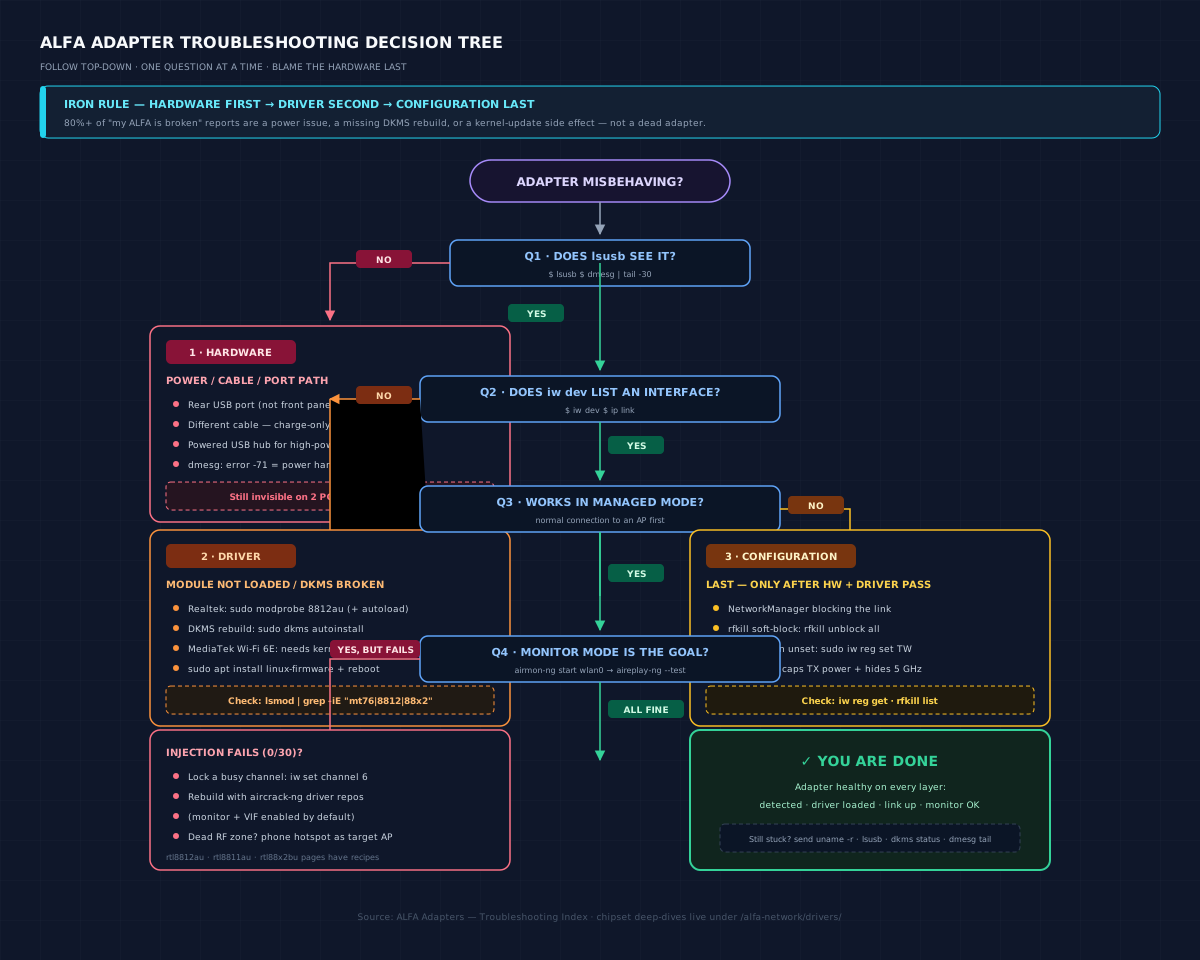
Problem classification index
| Category | Typical issues |
|---|---|
| Detection | Adapter not in lsusb, no interface, disappears after reboot |
| Driver | DKMS build fails, module not loaded, firmware errors in dmesg |
| Connection | Won't associate, drops constantly, slow link |
| Monitor mode | airmon-ng fails, injection test fails, no frames captured |
| Power | Adapter dies under load, works on one PC but not another |
| Regulatory | Wrong channel set, TX power capped, "5 GHz channels missing" |
Every chipset has its own deep-dive page — bookmark yours:
| Chipset | Adapters | Driver page |
|---|---|---|
| MT7612U | AWUS036ACM | mt7612u |
| MT7610U | AWUS036ACHM | mt7610u |
| MT7921AUN | AWUS036AXM / AWUS036AXML | mt7921aun |
| RTL8812AU | AWUS036ACH | rtl8812au |
| RTL8811AU | AWUS036ACS | rtl8811au |
| RTL8832BU | AWUS036AX / AWUS036AXER | rtl8832bu |
| RTL8821CU | AWUS036EACS | rtl8821cu |
Issue 1: Adapter not detected at all (lsusb empty)
Symptom
Plugged in, LED may or may not light, and lsusb shows no Realtek/MediaTek line.
Diagnosis
lsusb
dmesg | tail -30
Look for device descriptor read/64, error -71 or device not accepting address in dmesg — classic power-handshake failures.
Root cause
Almost always USB power or cable — especially on the high-power models (AWUS036AXM/AXML, AWUS036AX) connected to a front-panel port or an unpowered hub.
Fix
- Try a rear USB port (or the USB-C port via an adapter).
- Try a different cable — some cheap USB-C cables are charge-only.
- Use a powered USB hub.
- On a laptop, unplug other high-power USB devices.
- If still invisible on two different computers, the adapter is faulty — contact support.
Issue 2: lsusb sees it, but no wlanX interface
Symptom
lsusb shows the adapter; iw dev / ip link show nothing.
Diagnosis
dmesg | grep -iE "wlan|firmware|error"
lsmod | grep -iE "mt76|8812|8811|88x2|8821"
Root cause
Two common causes:
- Realtek chipsets: the DKMS module was never loaded (or failed to build after a kernel update).
- MediaTek Wi-Fi 6E: the kernel is older than 5.18 (
mt7921umissing) or firmware blobs are absent.
Fix
- Realtek:
sudo modprobe 8812au(match your chipset), and add it to/etc/modules-load.d/alfa.confso it auto-loads on boot. IfmodprobesaysModule not found, rebuild:sudo dkms autoinstall. - MediaTek:
sudo apt install linux-firmwareand reboot. Kernel too old? Upgrade the OS — see the compatibility matrix.
Issue 3: DKMS build fails after a kernel update
Symptom
"Adapter stopped working" right after apt upgrade; dmesg shows 8812au: version magic ... should be ....
Diagnosis
dkms status
If your module shows Error! or a broken kernel-version entry, that is the problem.
Root cause
The driver's DKMS recipe could not rebuild against the new kernel — usually missing headers, or the repo is too old for a brand-new kernel.
Fix
- Install headers:
sudo apt install linux-headers-$(uname -r) - Force rebuild:
sudo dkms autoinstall - Still failing? Update the driver repo and reinstall:
cd /opt/rtl8812au && sudo git pull && sudo make dkms_install
- Reboot and check
dkms statusagain — it should list your module asinstalled.
Issue 4: Monitor mode starts but injection test fails
Symptom
airmon-ng start succeeds, wlan0mon exists, but aireplay-ng --test reports 0/30 or Failed.
Diagnosis
sudo aireplay-ng --test wlan0mon
sudo iw dev wlan0mon info   # confirm it really is type monitor
Root cause
Driver built without proper monitor/injection support, or you are on a channel no AP is using (injection needs an AP beacon to reply to), or the RF environment is empty (isolated lab).
Fix
- Lock a channel with active APs:
sudo iw dev wlan0mon set channel 6 - Retest. Still 0/30? Rebuild with the aircrack-ng driver repos, which ship monitor + VIF enabled by default:
- In a dead RF zone, create your own AP with a phone hotspot on the same channel.
Issue 5: Wi-Fi drops or is slow
Symptom
Link connects then drops every few minutes; throughput far below the class rating.
Diagnosis
iw dev wlan0 link          # signal + tx rate
iw reg get | head -20      # regulatory domain
Root cause
- Regulatory domain: if
iw reg getshowscountry 00(unset), TX power is capped at the default 20 dBm limit. - Power saving: aggressive USB power management throttles the radio.
- Overheating: sustained TX on high-power adapters.
Fix
- Set your region:
sudo iw reg set TW(or your country code). - Set TX power:
sudo iwconfig wlan0 txpower 30(max legal for your domain). - Disable power save:
sudo iwconfig wlan0 power off. - Prefer a USB 3.0 port for AC1200+ adapters — USB 2.0 caps throughput.
Issue 6: 5 GHz channels missing
Symptom
Only 2.4 GHz networks visible; iwlist wlan0 freq shows no 5 GHz entries.
Root cause
The regulatory domain is unset or restricted (often country 00 on fresh installs), so the driver refuses 5 GHz channels.
Fix
sudo iw reg set TW    # replace with your country code
sudo ip link set wlan0 down && sudo ip link set wlan0 up
Still not solved?
Before you give up, collect this exact information and contact us (or the driver project) — it is what a maintainer needs to help you:
uname -r
lsusb
dkms status
dmesg | tail -50
iw dev
Attach all of the above plus: your adapter model, the OS/kernel, and the exact command whose output surprised you. One more thing worth checking — the hardware integration guides if you are running a Jetson, Raspberry Pi or Unitree robot; embedded boards have their own power and driver quirks.